
Digital

spend less time on your phone
Digital

How to Spend Less Time on Your Phone Without Becoming a Digital Monk

Your phone can be useful for almost everything. You can work, study, stay in touch with people, manage your money, find directions, take photos, and relax with it. The problem is that it can also quietly take up far more of your day than you intended. You check one notification, open one app, and suddenly 30 minutes have passed. The solution does not have to be throwing your phone into a drawer and living like a digital monk. You can still use your phone regularly while making it less distracting and more intentional. Here are 11 simple ways to spend less time on your phone without completely giving up the things you enjoy. 1. Start by Checking Where Your Time Goes Before changing your phone habits, find out what you are actually doing on your phone. Check your weekly screen-time report and look at which apps take up most of your time. You may discover that your phone use is not coming from one long session. It might be dozens of small checks throughout the day. Ask yourself: Which apps do I spend the most time on? When do I usually start scrolling? Which apps do I open without thinking? What am I usually avoiding when I pick up my phone? You do not need to judge the number. The point is simply to understand your habits before trying to change them. 2. Remove the Apps You Open Without Thinking Some apps become automatic. You unlock your phone, tap the same icon, and start scrolling before you have even decided what you wanted to do. If there are apps you repeatedly open out of habit rather than intention, consider deleting them or moving them somewhere less convenient. You do not necessarily have to remove every social media app. Even moving a distracting app away from your home screen can create a small pause between “I unlocked my phone” and “I’m scrolling.” That pause matters. 3. Turn Off Notifications That Pull You Back Notifications are designed to get your attention. If your phone constantly lights up, vibrates, or makes sounds, you are being given reasons to check it throughout the day. Go through your notification settings and ask whether each app really needs to interrupt you. You can usually keep important notifications such as calls, messages, calendar reminders, banking alerts, or work-related information. For everything else, consider turning notifications off. A sale does not need your immediate attention. Neither does a random social media update. Your phone should not decide when you need to look at it. 4. Move Social Media Off Your Home Screen Your home screen is valuable space. If the first thing you see after unlocking your phone is a row of social media apps, you are more likely to open them automatically. Move distracting apps into a folder or onto another screen. You can also replace them with apps that encourage more intentional use, such as your calendar, notes, reading app, weather, or reminders. This is a small change, but it makes your phone feel less like a place you go to automatically scroll. 5. Create Phone-Free Moments You do not need to make your entire day phone-free. Instead, choose a few specific moments when your phone stays away. For example: During meals While getting ready in the morning During conversations While exercising During your first 30 minutes after waking up During the last 30 minutes before bed Start with one. If you try to create ten strict rules at once, you may quickly get tired of them. One consistent phone-free period is more useful than a complicated system you stop following after three days. 6. Stop Taking Your Phone Everywhere Sometimes the easiest way to use your phone less is to make it less available. If you are going to another room for a few minutes, you do not always need to take your phone with you. If you are eating, leave it somewhere else. If you are doing a short household task, let it stay where it is. This might feel strange at first because we are used to having our phones within reach all the time. But once you stop carrying it everywhere, you may notice how often you were checking it simply because it was available. 7. Make Scrolling Slightly Harder You do not need extreme restrictions to reduce scrolling. Small amounts of friction can help. Try: Logging out of an especially distracting app Removing saved passwords for one app Turning off Autoplay where possible Using app limits Keeping your phone out of reach while working Switching your display to a less visually stimulating setup Removing social media shortcuts The goal is not to make your phone difficult to use. It is to make mindless scrolling require one extra decision. That extra second can sometimes be enough to ask yourself, “Do I actually want to open this?” 8. Replace the Habit, Don’t Just Remove It This is one of the most important parts of learning how to spend less time on your phone. If you remove scrolling but leave a large empty space in your routine, you may simply find yourself reaching for the phone again. Replace the habit with something easy. Instead of automatically scrolling, you could: Read a few pages of a book Make a cup of tea Take a short walk Stretch Listen to music Write in a notebook Tidy one small area Talk to someone Simply sit and do nothing for a few minutes It does not have to be productive. The goal is to become comfortable with having moments when you are not constantly consuming something. 9. Use Your Phone for a Purpose Before opening your phone, try asking: “What am I picking this up for?” Maybe you want to check the weather. Maybe you need to reply to a message. Maybe you need directions. Maybe you want to look something up. Do that thing and put the phone away. This simple habit helps separate intentional phone
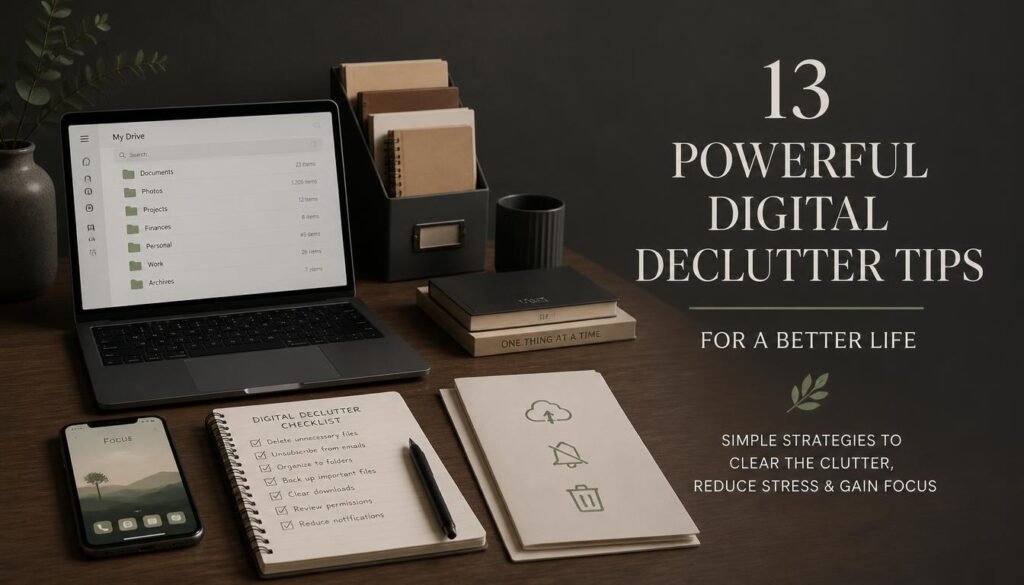
digital declutter workspace with laptop, smartphone, and organization checklist
Digital

The Ultimate Digital Declutter: What to Delete, Organize & Turn Off

Your phone, laptop, email inbox, cloud storage, and social media can slowly become cluttered without you even noticing. A few unused apps become dozens. Screenshots pile up. Your inbox fills with emails you never read. Notifications keep interrupting you, and finding one important file can suddenly take much longer than it should. That is where a digital declutter can help. You do not need to delete everything or become a digital minimalist. The goal is simply to make your digital life easier to manage by removing things you no longer need, organizing what matters, and turning off unnecessary distractions. Here is a simple digital declutter you can work through without trying to fix everything in one day. What Is a Digital Declutter? A digital declutter is the process of cleaning up the digital spaces you use regularly. This can include your: Phone Computer Email inbox Photos Downloads Cloud storage Social media accounts Browser Apps Notifications Online subscriptions Think of it like cleaning a room. You remove what you no longer need, put important things where they are easy to find, and make the space easier to use. The important part is not making everything look perfectly organized. It is creating a digital environment that works better for your everyday life. 1. Start With Your Phone Your phone is usually the easiest place to begin because you probably use it every day. Start by going through your home screen and asking yourself: Do I actually use this? Delete apps you have not opened in months, duplicate apps, old games, temporary shopping apps, and anything you downloaded for one specific reason but no longer need. You can also move less important apps away from your main screen. Try keeping your first screen for the things you genuinely use, such as communication, calendar, notes, maps, banking, or other important tools. A cleaner home screen can make your phone feel much less overwhelming. 2. Delete Apps You Don’t Use Unused apps do more than take up storage. They can also create unnecessary notifications and make it harder to find the apps you actually need. Look through your complete app list instead of only your home screen. Consider deleting: Apps you have not used in months Duplicate photo or editing apps Old shopping apps Games you no longer play Apps you downloaded once and forgot about Services you no longer use Before deleting anything, make sure you do not need information stored inside the app. If you are unsure, you can always check whether your account or important data is available elsewhere first. 3. Clean Up Your Photos and Screenshots Your photo gallery can become one of the messiest parts of your digital life. Screenshots, blurry photos, duplicate pictures, receipts, old memes, accidental photos, and images downloaded from the internet can quickly take over. You do not need to organize every photo into dozens of folders. Start with the obvious things. Delete: Blurry photos Accidental pictures Duplicate photos Old screenshots Expired information Images you no longer need Multiple versions of the same picture Then create a few useful albums for things you regularly need to find, such as travel, important documents, family, work, or personal projects. The goal is not a perfectly organized gallery. It is simply being able to find what you need without scrolling forever. 4. Clear Your Downloads Folder The Downloads folder is one of those places where digital clutter quietly collects. Old PDFs, images, documents, installers, screenshots, and random files can sit there for years. Open your Downloads folder and sort through it. Delete files you no longer need. For important files, move them into clearly named folders. For example: Documents → Personal → Important Documents Work → Projects → Project Name Study → Notes → Subject Name Use names that make sense to you. You should be able to understand what a file is without opening it. 5. Organize Your Important Digital Files Once you have removed unnecessary files, create a simple system for the ones you want to keep. You do not need ten levels of folders. A few broad categories are usually enough. For example: Personal Work Study Finance Photos Projects Important Documents If you use cloud storage, apply the same basic structure there. Also consider keeping important files backed up in a reliable location. A digital declutter should make your important information easier to find—not easier to lose. 6. Give Your Email Inbox a Reset You do not have to reach “Inbox Zero” to have an organized email account. Start by searching for obvious clutter. Delete emails that have no future value. Then look for emails you may need to keep, such as: Receipts Important bookings Work information Financial documents Account information Important conversations You can create a few folders or labels for emails you need to find later. Keep it simple. If your filing system becomes too complicated, you probably will not use it. 7. Unsubscribe From Emails You Never Read One of the easiest parts of a digital declutter is removing unwanted email subscriptions. Look at the emails you receive regularly and ask: Would I miss this if it stopped arriving? If the answer is no, unsubscribe. This can include: Store promotions Newsletters you never open Promotional offers Old services Notifications from websites you no longer use Do not feel obligated to keep receiving emails simply because you once subscribed. Your inbox should contain information that is useful to you now—not reminders of things you used to care about. 8. Turn Off Unnecessary Notifications Notifications are one of the biggest sources of digital distraction. You do not need every app to have permission to interrupt you. Go through your notification settings and turn off notifications that are not genuinely useful. You might keep notifications for: Calls Important messages Calendar reminders Banking or security alerts Essential work notifications You may not need notifications every time someone posts something, a store has a sale, or an app wants your attention. Your phone does not need to

Scroll to Top